Python Print New Line: Methods, Examples, and Best Practices
 Kimberly Fessel
Sometimes you can write all your Python output together, but sometimes…
…you just need to print on a new line.
In this article, we’ll cover several different ways to print a new line in Python, including various escape sequences, arguments of the print() function, and multiline strings. We’ll warn you about accidentally including escape characters in file paths, and you’ll learn how to write multiple lines of text data to a file. Keep reading —a new line of thinking awaits.
Quick Answer: Printing a New Line in Python
The fastest way to add a newline character to your print statements is with the escape sequence \n. (The “n” is for “newline.”) Place it in the string you’re printing, wherever a new line should appear.
You may use \n to add multiple newline characters, at the beginning, or at the end of your string:
What is a Newline Character in Python?
When you create a new line with Python programming, you add a single character, the newline character, to your string. \n lets you do so when printing text. It consists of two parts:
\: the escape character, which tells Python something special is coming up.
n: newline
Together, \n signals to Python that you want to create a newline character, or jump to the next line.
The Escape Character (\) and the Trio: \n, \r, and \r\n
The backslash (\) has a special meaning in Python. It’s the escape character. Whenever you use it, Python knows to treat whatever follows it as an escape sequence rather than a standard string character. Here are a few of those special Python commands along with their meaning:
Backslash Sequence | Name | Purpose |
|---|---|---|
\n | Newline | Line break |
\t | Tab | Horizontal spacing |
\', \" | Quote | Insert a single or double quote in a string |
\r | Carriage Return | Move cursor to start of line |
\r\n | Windows Line Ending | Line break |
You’ve already seen \n, but two other backslash sequences pertain to lines: \r and \r\n.
The carriage return, represented by \r in Python, moves your cursor to the start of the current line. On its own, it does not bring you down to the second line; you’ll stay on the same line instead. Calling the print() function on a string that contains \r may effectively overwrite a portion of your statement in a single line as you see in the following code:
Midway through the string, the carriage return brings your cursor back to the beginning of the line and overwrites the first four characters of the text. Do not attempt to use \r alone for new lines.
You may, however, see \r\n, which pairs a carriage return with a newline character. It brings you back to the beginning of your line and then down to the next line. This produces the same visible line break as \n in most modern systems, but it is sometimes necessary for legacy file compatibility on the Windows operating system.
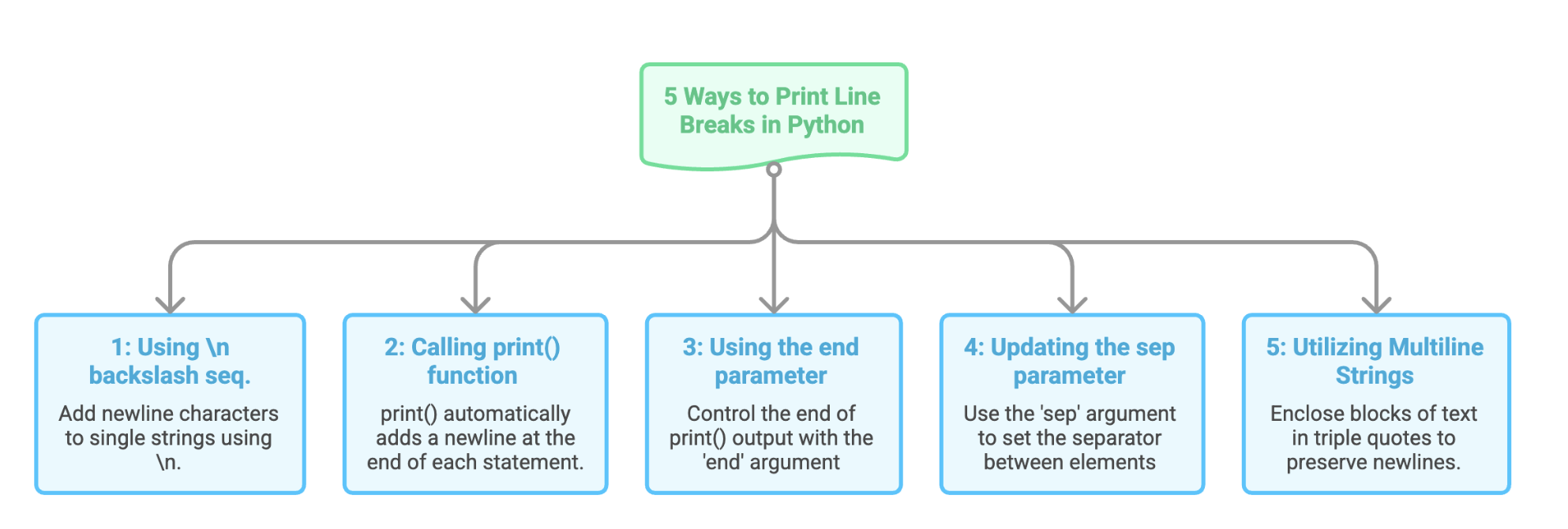
5 Ways to Print Line Breaks in Python
Depending on your needs, there are a few different methods for newline handling in Python. We’ll cover the most popular ones here.
#1: Using the \n Backslash Sequence
In Python, \n is the most common method for adding line breaks to single strings. Include as many as you’d like, apart or in succession, to create newline characters.
#2: Calling print() for Automatic New Lines
You’ll also notice that the print() function in Python automatically creates one new line at the end of each statement. For example, the first print() in the following code prints “Hi there!” then moves to the second line. The second print() function logs “Bye!” to the console before once again moving the cursor to the next line:
This helpful behavior means you won’t continually print text data overtop of previous outputs, but if you do happen to have a situation where you don’t want the default new line at the end of your print statement, you can adjust the print()end argument.
#3: Using the end parameter in print()
You’ve most likely executed at least one print statement in Python, but did you know that the print() function accepts arguments? One helpful keyword argument, called end, controls what Python adds to the end of your output. It appends a newline character via \n by default, but you can set the end parameter to an empty string or a single space if you don’t want to skip lines between your print statements.
You may also choose to add more than one new line between print() outputs:
#4: Updating the sep parameter in print() for Multiple Lines
A second argument, called sep for “separator,” determines what goes between elements when you submit comma-separated values or variables to the print() function. The default for this argument is a single space, but you can switch it to \n to print your items on separate lines:
#5: Utilizing Triple-Quoted, Multiline Strings
If you have a block of text you’d like to print across multiple lines, you can enclose it all in triple quotes like the following code example:
You don’t need \n to create newline characters inside triple-quoted multiline strings. Python preserves white space, including new lines, and prints the text exactly as written.
You’ll often see three quotes surrounding docstrings as explainer text at the beginning of Python scripts. They’re also useful to print longer-form formatted text like emails, messages, or templates.
Comparison Table for New Lines
Feature | Type | Where it’s used | What it does | Use case |
|---|---|---|---|---|
\n | Escape sequence | Inside strings | Inserts a newline character | General purpose new lines in strings |
\r\n | Escape sequence pair | Inside strings | Carriage return + newline character | Windows text files, legacy compatibility |
print(), default | Function | In Python code | Automatically adds a newline character after output | Basic console printing |
end= | Function argument | Inside print() | Controls what’s printed at the end (default \n) | Customizing line endings or suppressing new lines |
sep= | Function argument | Inside print() | Controls separator between multiple values (default single space) | Formatting multiple printed values |
"""triple quotes""" | String literal | String definition | Creates multiline string with real line breaks | Emails, messages, templates |
Common Errors and Best Practices
With so many ways to insert line breaks, there are bound to be a few places that need your extra attention to detail. Watch out for these “gotchas” when adding new lines.
Fixing Escape Sequence Errors in File Paths
Python interprets a backslash (\) in a string as the start of an escape sequence. If you’re using the Windows operating system and reading files from your computer, pay close attention to this issue because Windows file paths commonly use backslashes. Consider the following:
'C:\new_folder\text.txt'
The intended path is the text.txt file within the new_folder folder, but Python sees \n as a newline and \t as a tab.
For dealing with issues like this one, do one of the following:
Add an
rjust before the string. This asks Python to read the text as a raw string:r'C:\new_folder\text.txt'Escape the backslashes by manually adding an extra backslash:
'C:\\new_folder\\text.txt'Switch to forward slashes, which are Python-friendly:
'C:/new_folder/text.txt'
Extra Lines in Triple-Quoted Strings
Triple-quoted strings give you exact string formatting. Just make sure not to add extra line breaks inside the triple quotes at the beginning or end, or you may introduce unexpected blank lines.
The console contains extra lines before and after the note because the string literal starts and ends on its own lines. To avoid this, make sure your text begins immediately after the opening quotes and stops right before the closing quotes.
Wrapping Up
The main way to print new lines in Python is with \n to add newline characters to your strings. You also can create new lines with the print() function, either automatically or by changing its end and sep parameters. Triple-quoted strings allow multiple lines as well; they’re especially useful for printing longer messages with structured formats.
Whichever method you choose, you can learn more about it by interacting with the AI Tutor. Try out this prompt to break the ice:
