Python glob Module: File Pattern Matching Explained

 Ekene Eze
Finding and organizing files sounds simple when you are dealing with just a few files. You create folders, name things clearly, and everything is easy to find. That same task can quickly turn into a nightmare as a project grows, with multiple folders and unpredictable filenames.
You’ll run into these challenges when organizing downloaded files, processing log files, or cleaning up old backups. Because these files are unpredictable, filenames may change, directories can grow, and assumptions can break. You need a way to match files based on patterns rather than hardcoded names. This is exactly the problem that a pattern-based file matching system like Python’s glob module can solve. It lets you find files using wildcards, brackets, and other patterns, making file organization much easier.
In this guide, you will learn what the module is, how to use it effectively, and where it shines in real projects.
What is the Python glob module?
The Python glob module is part of the standard library and is used to find files and directories that match a given pattern. It allows you to search the filesystem using Unix shell-style wildcard patterns, rather than looping through directories and checking filenames one by one.
At its core, glob performs pattern-based file matching in the same way you might search for files like *.txt or logs/*.log in a terminal. This differs from normal string matching in loops. Rather than comparing text patterns, glob walks through the filesystem and checks each entry against your pattern rules.
When you write something like *.py, it does not look for the literal string *.py. Instead, it scans the target directory and returns all the pathnames matching the specified pattern (py files in this case); these pathnames can include both files and directories. If you only need the file name from a full path, you can extract it using functions like os.path.basename.
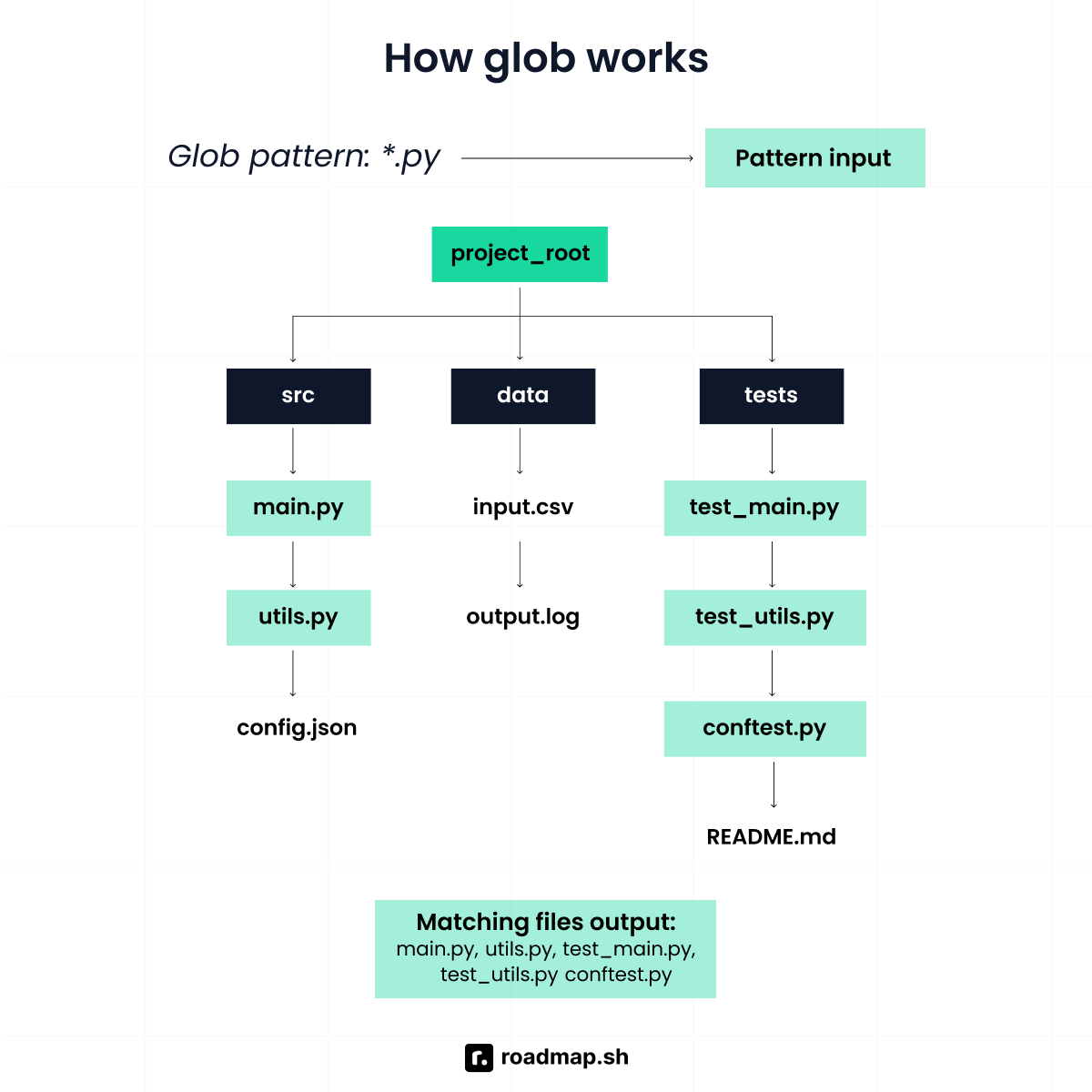
This workflow makes glob a great fit for situations where filenames are dynamic or only partially known, such as timestamped logs, exported reports, or user-generated uploads.
Supported wildcard characters
Glob uses three main wildcard characters to search through files and directories:
*matches zero or more characters in a single path segment. For example,*.txtmatches all text files in a directory.?matches exactly one character. For example,data_?.csvmatchesdata_1.csvordata_a.csv, but notdata_10.csv.[]matches any single character within the brackets. For example,file_[abc].logmatchesfile_a.log,file_b.log, andfile_c.log.
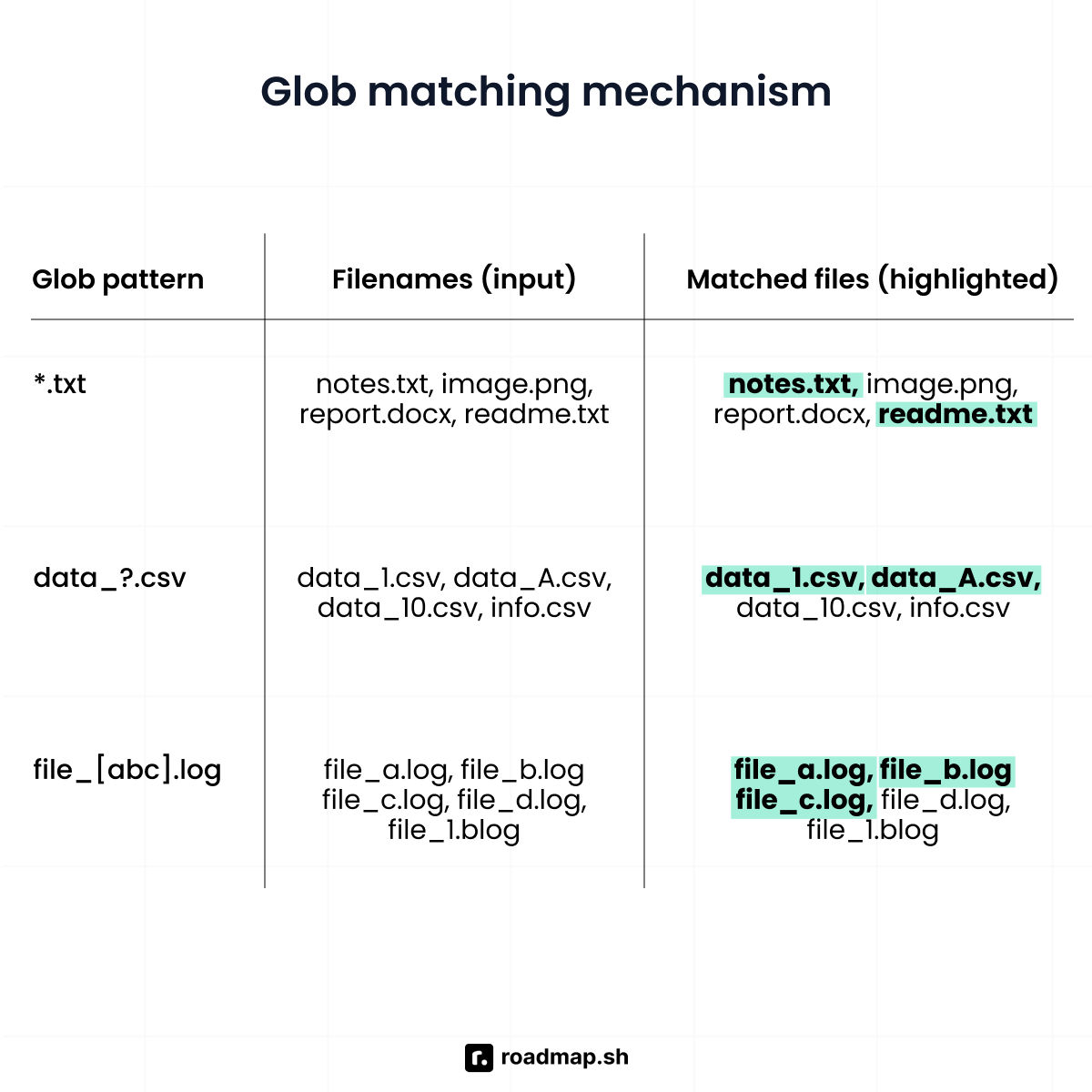
You can also use brackets for a literal match of special characters; for instance, to match a file name containing an asterisk, use []. Special characters like " and ? can be matched literally by enclosing them in square brackets. Brackets can also define character classes and ranges, such as [a-z] to match any lowercase letter, or [A-Z] for uppercase. The character range notation ([seq]) matches any character in a set, so [a-z] matches any character from 'a' to 'z'.
Below is an example of how to use glob to search for all matching text files:
This returns a list of all the pathnames matching the .txt pattern in the current directory.
So far, we have covered what the module is and the problem it solves. The next step is to apply it in real code and explore how pattern-based file matching fits into everyday Python projects.
Implementing glob in Python
Let’s get hands-on with how you can put glob to work in your day-to-day tasks. We will start simple and gradually move into more advanced features, using Python’s standard library to keep things straightforward.
At its core, glob provides a high-level interface for file discovery while hiding the complexity of root directory traversal. This means you don’t need to manually iterate through files, open directories, or filter results. You simply describe the pattern, and glob handles the rest for you in a single function call.
Basic file matching in a single directory
This is the most common way to use the glob module. It allows you to match files in a single directory using a pattern. For example, if you are working with a directory full of monthly Excel reports, CSV files, or images generated by an application and only need files in a specific format, glob is a great fit.
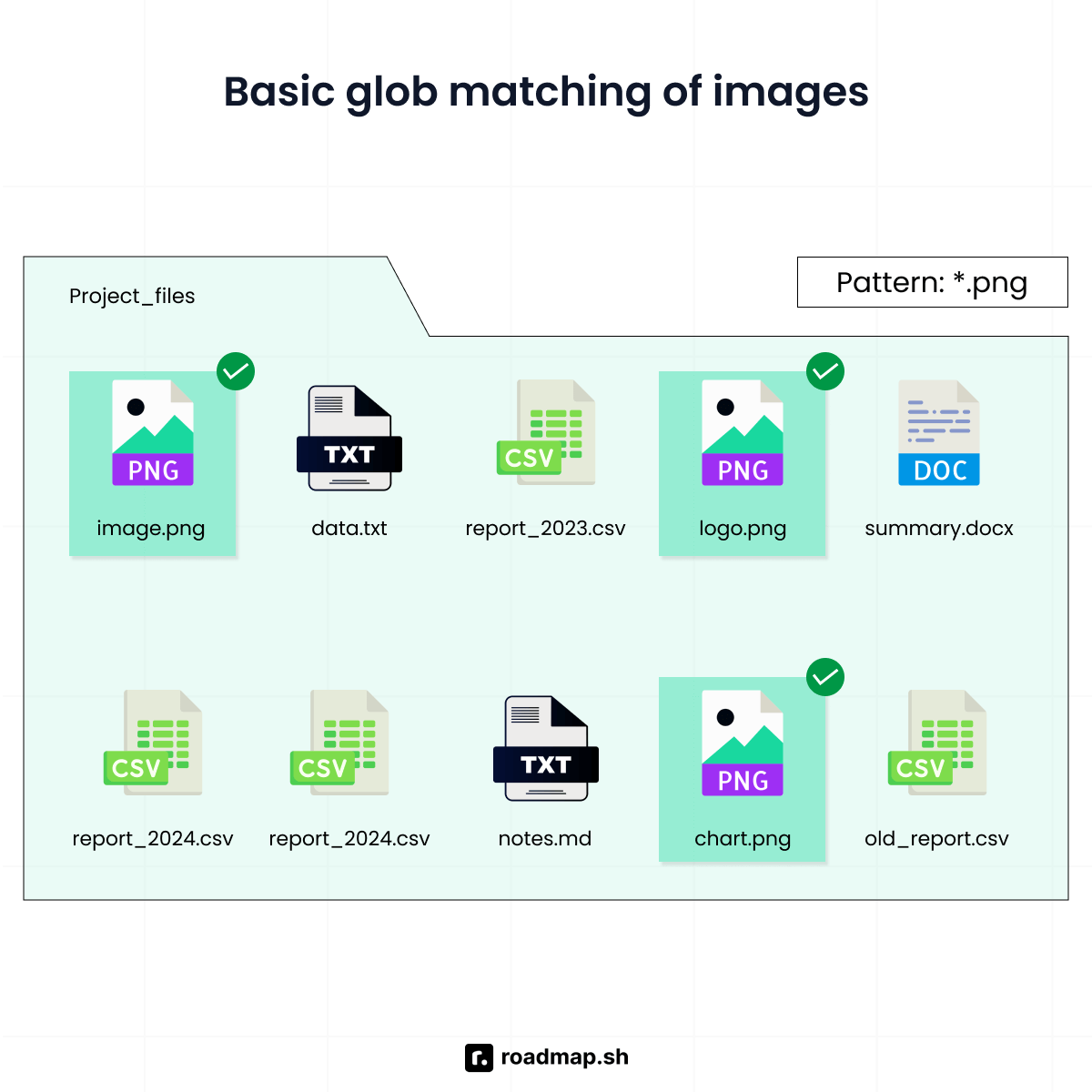
In this example, the glob.glob() function returns a list of strings representing the matched paths. If no files match the pattern, it simply returns an empty list, without raising any errors or exceptions.
Recursive searches using **
In practice, files are rarely neatly organized in a single folder. Logs, generated files, and uploads often end up spread across multiple directories. In cases like this, you need a search approach that can go deeper into subfolders.
For example, if you have a logging system that stores daily logs by date and service, you can use recursive glob patterns to scan everything in one pass.
Without recursive=True, the ** pattern behaves like a single * and only matches files in the current directory. Setting recursive=True tells glob to walk through the entire directory tree under the specified path.
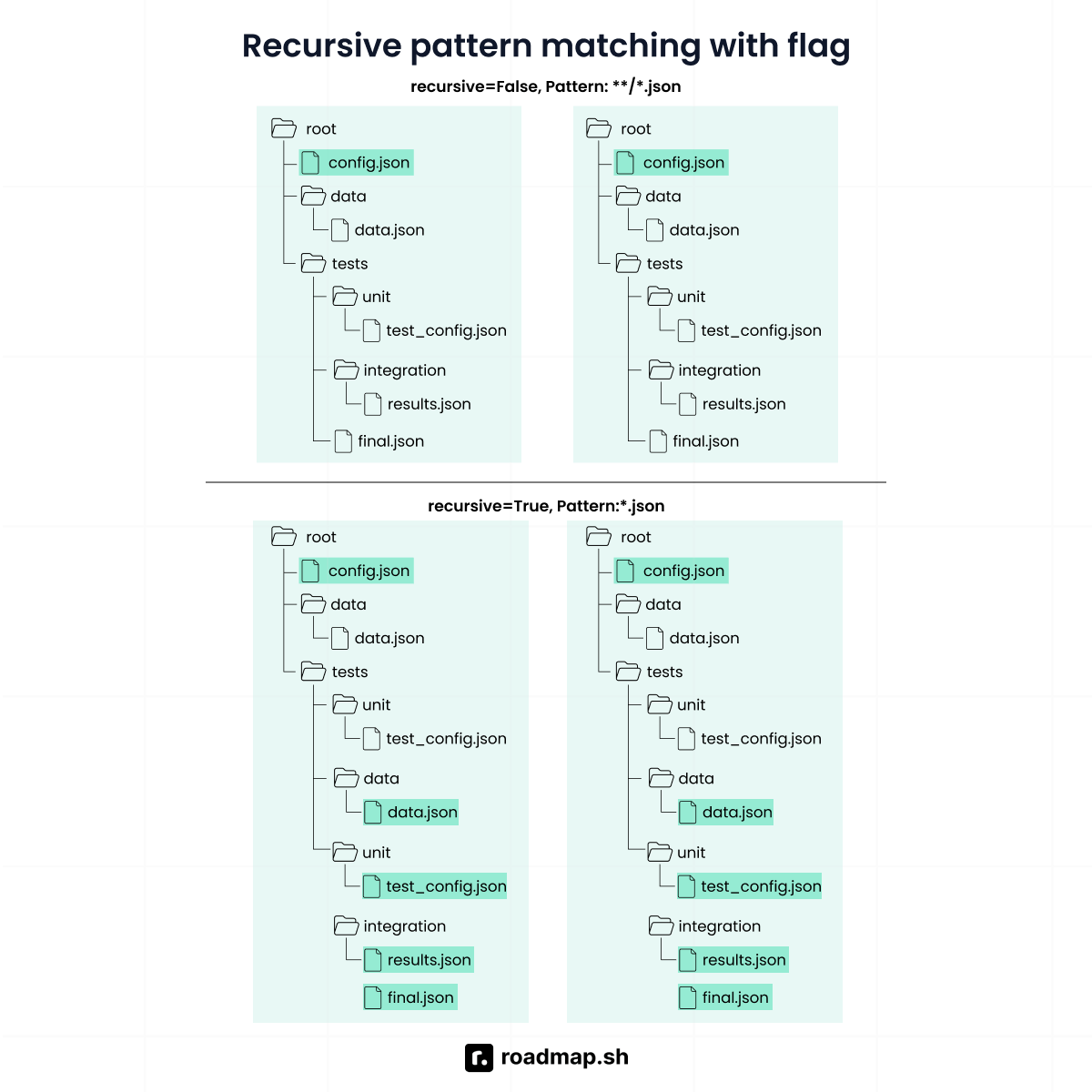
Note that when dealing with directories with thousands of files, recursive searches can take longer to scan and can affect performance.
Absolute vs. relative path matching
One useful feature of glob is its support for both relative and absolute paths. While this flexibility is helpful, it can also be a source of confusion. On Windows, write patterns as raw strings so backslashes are not read as escape sequences.
Relative paths are resolved based on the current working directory. This works well for small scripts or quick experiments, but it can become unreliable in production or when running code from different environments, where the working directory may change.
Absolute paths, on the other hand, are explicit, always point to the same location, and follow the path specification, regardless of where the script is executed from.
A good rule of thumb is to use relative paths for quick scripts and controlled environments, and absolute paths in situations where consistency matters more, such as production systems.
Using glob with pathlib
The pathlib module pairs nicely with glob because it uses an object-oriented approach. This usually makes code easier to read and maintain than working directly with plain strings. Rather than handling raw file paths, you work with Path objects, which are simpler and more intuitive to manipulate.
Both Path.glob() and Path.rglob() return Path objects rather than strings. This gives you cleaner path handling, simpler joins, and better readability when chaining file operations.
Using glob is only part of the story. Python offers several ways to search for and work with files, so it helps to understand when glob the right tool is and when another approach might be a better fit.
Practical applications of glob
Glob really shines when file names follow a pattern, and you want to avoid writing extra logic to manage them. It shows up often in everyday development tasks, even if you do not always notice it at first.
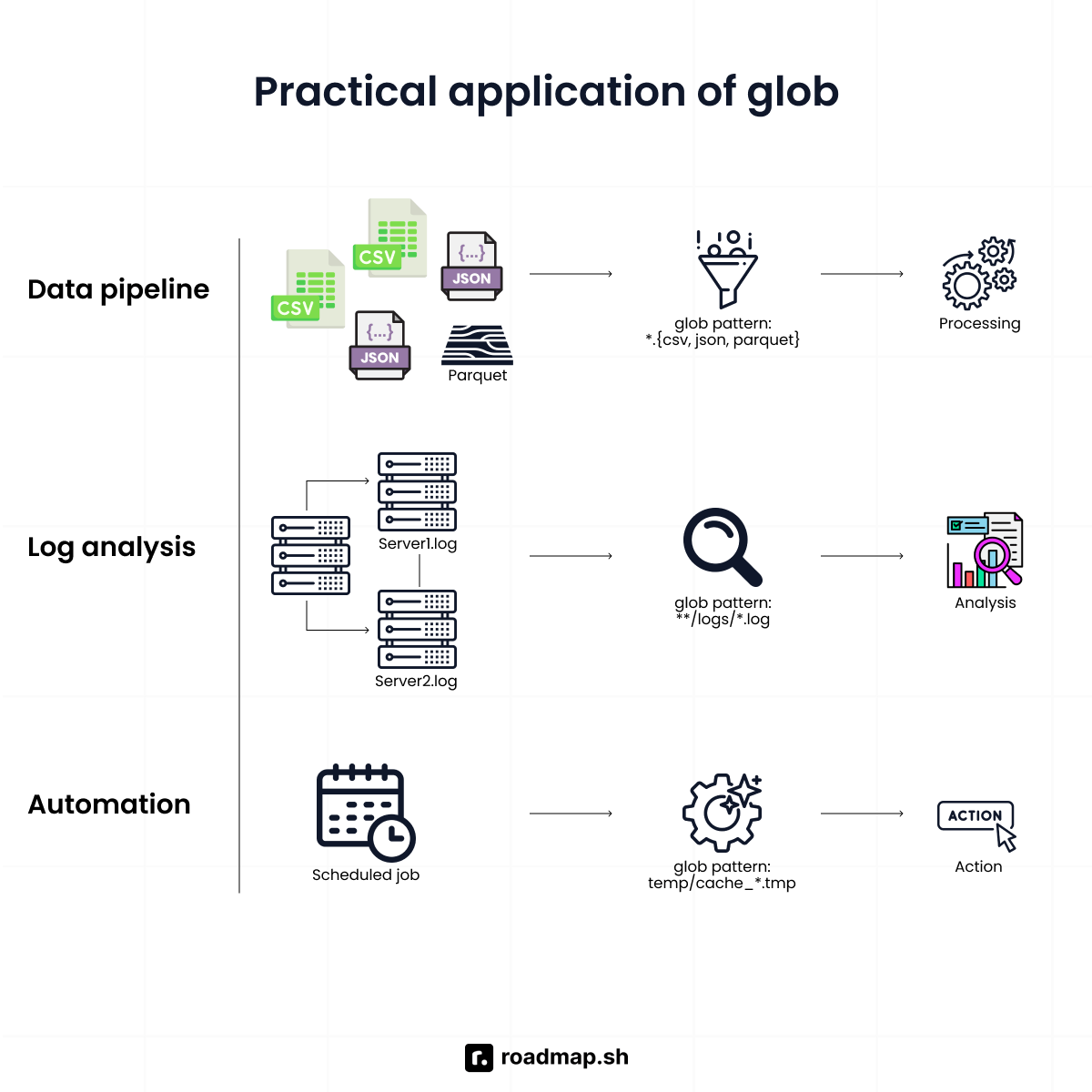
Data processing pipelines
This is one of the most common use cases for glob. As a data analyst or data engineer, you often work with folders full of Excel, CSV, or JSON files that arrive hourly or daily. These incoming files are rarely consistent in number or naming, which can easily break scripts that rely on fixed filenames or rigid assumptions.
Instead of hardcoding filenames and relying on static matching, glob lets you pick up everything that matches a pattern, process it, and move on.
Log analysis and monitoring
Applications running on the web, in the cloud, or on mobile devices generate large volumes of logs. These logs are often rotated or grouped by timestamp, service, or environment. glob allows you to quickly collect all relevant log files for a given time range without worrying about how many files were created or where they are located in the directory tree.
Batch file operations
Another common use case for glob is automating bulk file operations. Tasks like cleaning up old backups, compressing assets, or renaming files become much simpler when you can target files by pattern.
Build systems and deployment workflows
glob is often used in build and deployment scripts to locate assets such as compiled artifacts, configuration files, or static resources. It reduces the need to update scripts every time a new file is added, which keeps deployment logic cleaner and easier to maintain.
Automation and jobs
When scripts run on a schedule, the exact set of files and other artifacts tends to change from one run to the next. Scripts need to adapt automatically based on what is available at the time they execute.
glob fits naturally into this type of automation and cron jobs that might involve archiving data, syncing files between systems, or uploading reports. It allows these scripts to stay flexible without requiring constant updates.
Once you start using glob in practical scenarios, a few patterns and mistakes tend to show up. This is a good point to look at common errors and the best practices that can save you time and frustration.
Common errors and best practices
glob is easy to use, and that simplicity sometimes makes it easy to misuse. Most issues you will run into are not caused by glob itself, but by assumptions about how it behaves. Knowing the common pitfalls can save you time and make your code more predictable.
Assuming glob always returns results
A frequent mistake with glob and pattern-matching libraries in general is assuming that a search will always return results. That is not always the case. When no files match a pattern, glob returns an empty list. This means you should always check the result length or provide a fallback to avoid surprises or unexpected behavior later in your code.
Relying on relative paths
glob is a highly flexible module, but that can also be a problem. Relying heavily on relative paths can cause scripts to break when they are run in different environments. This often happens when the working directory changes between development, testing, and production.
A safer approach is to build paths dynamically or be explicit about base directories, especially when your code needs to run across multiple environments.
Misunderstanding wildcard behavior
The glob syntax for *, ?, and [] can look similar to regular expressions, which makes it tempting to treat them the same way. They are not the same. glob patterns are simpler and behave differently.
Using glob effectively means understanding what these wildcards can and cannot do, and applying them based on their strengths rather than expecting full regular expression behavior.
Overly broad patterns
While glob handles the heavy lifting, it can be tempting to search everything in one go. This is a common trap. Patterns like **/* can scan very large directory trees and hurt performance, especially in production environments.
It is usually better to narrow your search by directory, file extension, or naming convention so the filesystem scan stays focused and efficient.
Mishandling search results
Another common issue is assuming that glob returns sorted results or actual file objects. It does not. glob returns an unsorted list of file path strings, not the files themselves. Because glob returns an ordinary list, you can sort or filter() it like any other.
If you need a specific order, you must sort the results manually. If you want to read or process the files, you still need to open them explicitly. Treating glob results as ready-to-use file objects is a trap you should not fall into.
Wrapping up
The glob module is a powerful tool for filesystem automation and pattern-based discovery. Whether you are building data pipelines, cleaning up old files, or processing batches of similar documents, glob gives you the same wildcard matching you would use in a shell, directly inside your Python scripts.
If you want more hands-on practice with glob, use the prompt below, or check out AI Tutor dedicated page to discover all its capabilities:
You can also check out the Python roadmap for a more structured learning path and a deeper understanding of how glob fits into the wider Python ecosystem.
