How to Troubleshoot Any Computer
A step-by-step way to find and fix computer problems on Windows, macOS or Linux
What you'll learn
- A six-step method that works the same on Windows, macOS and Linux
- How to narrow a problem down by comparing machines, checking connections, and using ping and traceroute
- How to use the process list and the logs to find a cause, and test one change at a time
- When a slow computer could be a security problem, and why you report it before removing anything
Troubleshooting works the same way on Windows, macOS and Linux. You ask what's wrong, guess the likely causes and test them one at a time. Then you fix the problem, check that the fix worked, and write down what happened. Only the tools change: Task Manager on Windows, Activity Monitor on macOS and top on Linux.
The video follows one slow laptop. You find out how far the problem goes by comparing it with another machine, and you check the network with ping and traceroute when only websites are slow. You try the simple things first, like power and a restart. Then you look at what is using the processor and what the logs say. Undoing one recent change, a browser extension, makes the laptop fast again.
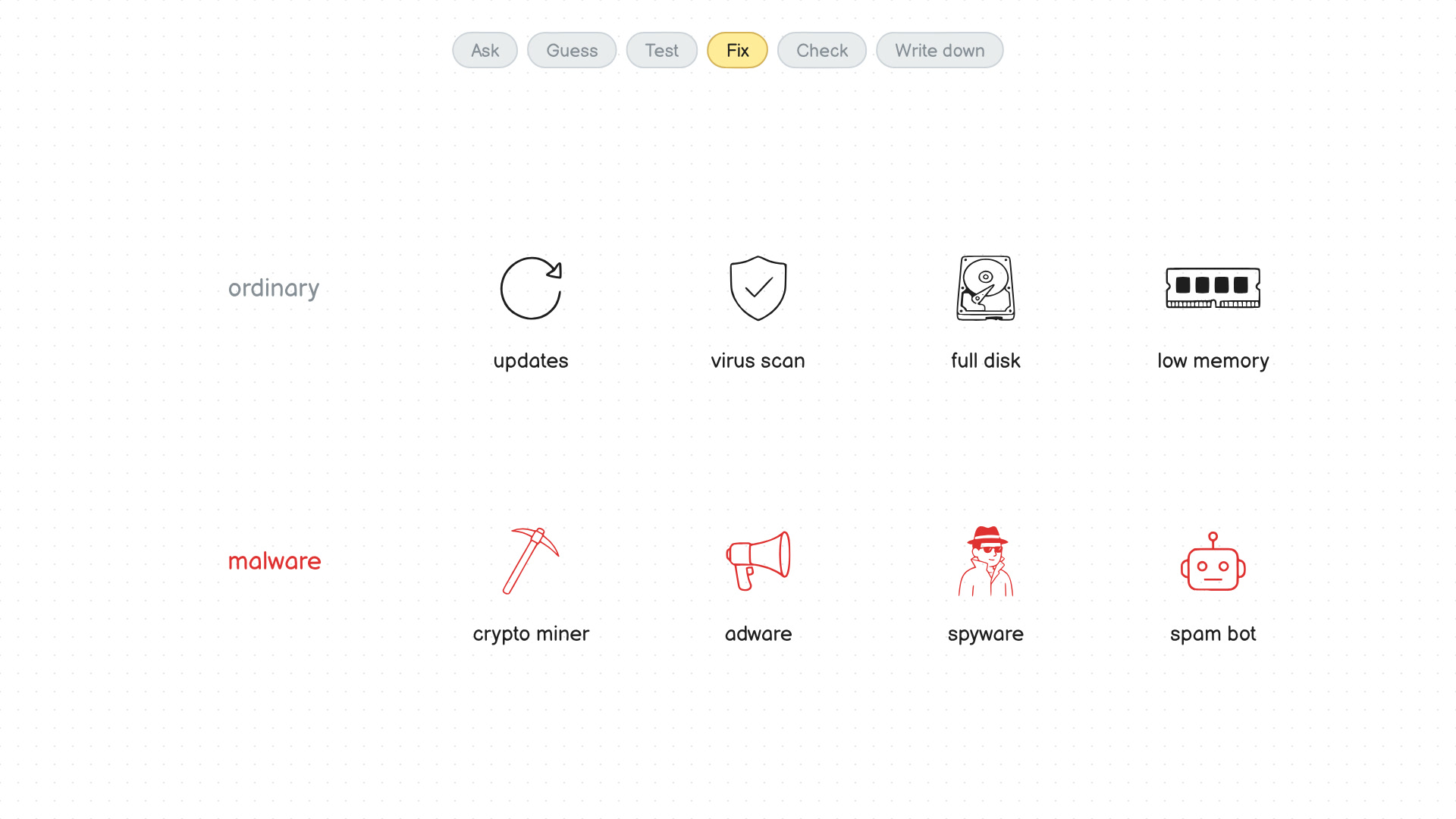
High processor use is usually something ordinary, like updates, a virus scan, a full disk or too little memory. It can also be malware, such as a crypto miner, adware or spyware. When something looks suspicious, write down what you found and tell your security team before you remove it, because other machines may have it too. The same steps work for other problems as well, like no network, crashing apps, login trouble or a computer that won't start.